QR Code Scanners Aren’t Just for Menus: How to Use Them Safely (and Actually Find Them Useful)
QR codes are everywhere again—from parking meters to package returns. Learn what they do, where they help, and how to scan safely without getting tricked.
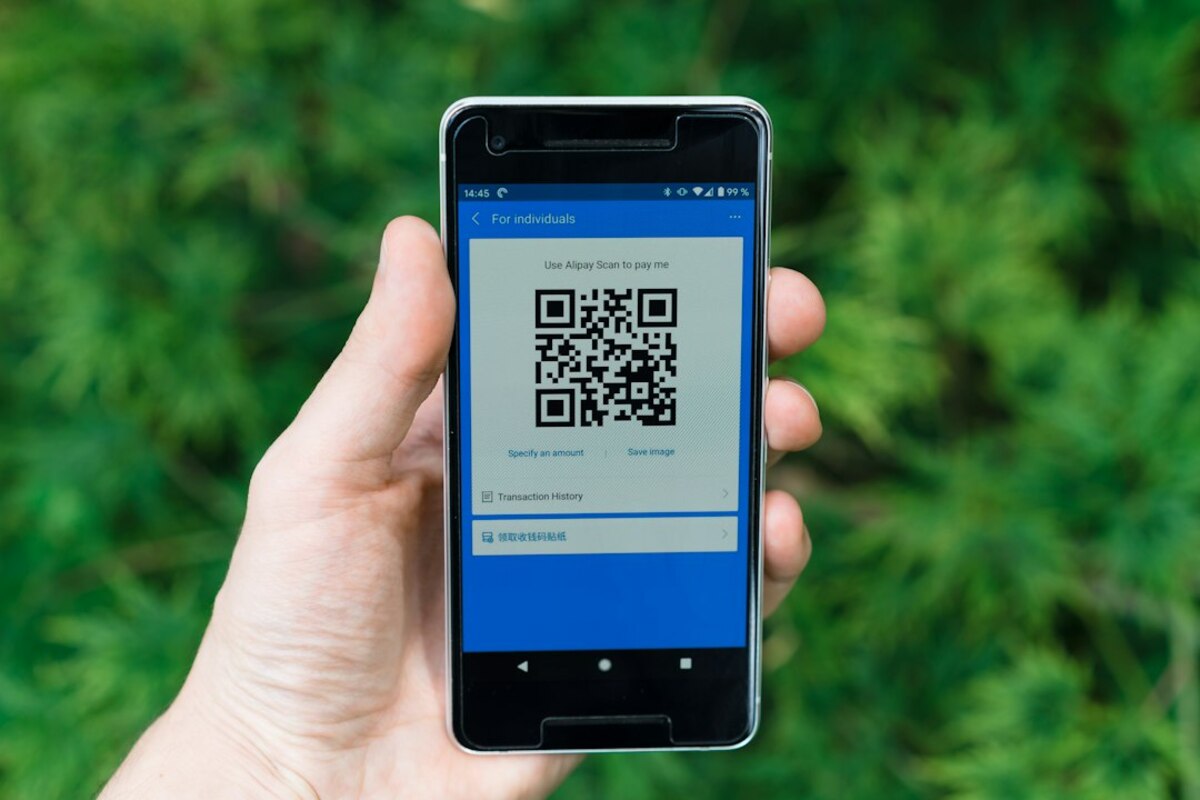
- QR codes are simply “shortcuts” that can open websites, connect to Wi‑Fi, pay, or share info—fast.
- Most QR risks come from where a code sends you; preview links and use built-in phone scanners to reduce surprises.
- You can use QR codes for practical everyday wins: Wi‑Fi sharing, contact cards, payments, and quick forms.
Why QR codes are suddenly everywhere again
QR codes have been around for decades, but they’ve recently gone from “sometimes on posters” to “on almost everything.” You’ll see them on restaurant tables, parking meters, event tickets, product packaging, public transit signs, donation jars, and even on shipping labels for returns.
The reason is simple: a QR code is a fast bridge between the physical world and something digital. Instead of typing a long URL, searching an app store, or hunting through menus, you point your camera and jump straight to the action.
Think of a QR code as a printed shortcut. It can be stuck onto anything, updated behind the scenes (in some cases), and used by anyone with a phone—no special hardware needed.
Here are a few real-life “you’ve probably done this” scenarios:
- At a café: scan to view a menu, pay, or leave a tip.
- At a concert: scan your ticket code at the entrance.
- In a parking lot: scan to start a parking session without a kiosk.
- When returning an online order: scan at the counter so they can print your label.
All of that convenience is real. But convenience can also make people move fast—and when you move fast, you’re less likely to double-check what you’re opening. That’s where QR code safety comes in.

What a QR code can do (with examples you can picture)
A QR code is just a visual way to store text—often a web link, but not always. When you scan it, your phone reads that text and offers to do something with it.
Below is a quick “translation guide” for the most common QR code actions, with everyday examples.
| What the QR code contains | What happens when you scan | Everyday example |
|---|---|---|
| A website link (URL) | Your phone opens (or suggests opening) a webpage | A poster for a local event links to tickets |
| Wi‑Fi details | Your phone offers to join a Wi‑Fi network | A friend’s home Wi‑Fi without spelling a password out loud |
| Contact card (vCard) | Your phone offers to add a contact | A business card you scan instead of typing name/number |
| Payment link | Your phone opens a payment page or wallet flow | A charity donation sign or bill-splitting request |
| App deep link | Your phone opens a specific page inside an app | “Open this recipe in our app” from a magazine |
| Plain text | Your phone shows text (sometimes with copy options) | A locker combination or a short instruction note |
The most important idea: a QR code is not “the internet.” It’s a wrapper for instructions. The safety question is always: what instructions is it giving your phone?
How QR code scams work (and how to spot them without becoming paranoid)
QR code scams don’t usually “hack your phone” the moment you scan. In most cases, the scam is much simpler: it tries to get you to open a fake site where you’ll enter login details, payment info, or personal information.
A classic example is called “quishing” (QR phishing). The attacker places a malicious QR code where a normal one is expected.
Picture this:
- You walk up to a parking meter. There’s a QR code sticker that looks official.
- You scan it. A payment page opens that looks like the city’s site.
- You enter your card details. You paid a scammer, and you still might get a parking ticket.
Or another common setup:
- You’re in a busy café. The table has a QR code for the menu.
- Someone covered the original code with their own sticker.
- You land on a page that asks you to “install a menu app” or “verify your card for a deposit.”
Here are practical warning signs that don’t require technical knowledge:
- The code is a sticker over another code (especially if edges look misaligned, wrinkled, or layered).
- The link looks weird: misspellings, extra hyphens, or a random-looking domain you’ve never heard of.
- The page rushes you: “Act now,” “account will be locked,” “confirm immediately.”
- It asks for too much: a menu page asking for login credentials, or a parking page asking for unrelated personal details.
- It pushes an app install when a normal webpage would do.
In other words: QR codes aren’t “dangerous,” but they can be a fast lane to the wrong place. You wouldn’t type your credit card into the first website someone hands you on a slip of paper. A QR code deserves the same pause.
Usually no. Most modern phones show a preview and require a tap before opening a link or joining Wi‑Fi. The bigger risk is what you do after the page opens—entering passwords or payment details without checking the site.
Usually no. Most modern phones show a preview and require a tap before opening a link or joining Wi‑Fi. The bigger risk is what you do after the page opens—entering passwords or payment details without checking the site.
Many are fine, but you often don’t need one. iPhone and most Android phones can scan QR codes with the built-in Camera app. Built-in tools tend to be simpler and reduce the chance you install something pushy or ad-heavy.
Many are fine, but you often don’t need one. iPhone and most Android phones can scan QR codes with the built-in Camera app. Built-in tools tend to be simpler and reduce the chance you install something pushy or ad-heavy.
Scan, then pause. Look at the domain name before tapping. If the QR code is for something official (parking, payments, tickets), compare the website name to what you’d expect from the organization.
Scan, then pause. Look at the domain name before tapping. If the QR code is for something official (parking, payments, tickets), compare the website name to what you’d expect from the organization.
How to use QR codes safely (without turning it into a whole project)
You don’t need special software or a cybersecurity background. You just need a couple of habits—like looking both ways before crossing a street.
1) Use your phone’s built-in camera scanner
For most people, the simplest approach is the best: open the Camera app and point it at the code. You’ll usually see a small banner showing the link or action.
Why this helps: it reduces the temptation to download “QR Scanner Pro Max” apps that may be ad-heavy or request extra permissions you don’t want to deal with.
2) Read the link preview like you’d read a street sign
Before you tap, look at the domain (the main website name). A small difference matters.
- Expected: cityparking.gov or transit-authority.org
- Suspicious: city-parking-payments.info or transit-authority.verify-portal.com
If it’s a brand you know, the link should resemble that brand’s real site. If the QR code is at a store, you can also ask staff what the official URL should look like.
3) Don’t enter sensitive info just because the page “looks right”
A fake webpage can copy logos and colors in minutes. If a QR code takes you to a login page, consider a safer route:
- Open the service by typing the address yourself (or using your saved bookmark).
- Log in there, then navigate to the feature you needed.
This is especially smart for anything involving banking, email accounts, payment portals, or government services.
4) Treat payment QR codes like you’d treat a card reader
If you’re paying from a QR code at a meter or counter, do a quick “tamper check”:
- Is the code printed as part of a sign, or is it a sticker slapped on?
- Is there evidence another code is underneath?
- Does the destination site match the organization’s name?
If anything feels off, use an alternate method (official app, kiosk, or typing the URL shown on the machine).
5) Watch for “install this app to continue” prompts
Sometimes an app is legitimate. But if a basic task (menu, form, parking) requires an app install from a QR code, it’s worth slowing down. Ask yourself: “Would a normal webpage do this?” Often the answer is yes.
6) Use a private browsing window for sketchy one-off scans
If you’re scanning something you don’t fully trust but still need to access (say, an information poster in a public place), opening it in a private/incognito tab can reduce how much gets saved (cookies, some session info). It’s not magic armor, but it’s a reasonable “low effort” step.
Unexpectedly useful ways to use QR codes in everyday life
Most people think QR codes are for menus and tickets. That’s the obvious part. The more interesting part is how they can reduce small daily frictions—tiny moments where you normally stop, type, search, or repeat yourself.
Sharing Wi‑Fi without spelling the password
If you’ve ever read a Wi‑Fi password off a router label like it’s an ancient prophecy (“Is that a zero or an O?”), QR codes are the calmer alternative. Many phones and routers can generate a Wi‑Fi QR code so guests can scan and join.
Scenario: friends come over, and instead of everyone asking for the password, you show a QR code on your screen. They scan, join, done.
Turning a printed handout into something clickable
QR codes are perfect for community boards, classrooms, and workplace posters—anywhere you want to provide extra info without cramming a long URL into a small space.
Scenario: a gym posts a QR code next to a class schedule. You scan and instantly add a calendar event or see changes.
Quick “one-tap” forms for events
Potlucks, neighborhood meetings, office lunches—these often involve a sign-up sheet that no one can find later. A QR code can link to a simple form.
Scenario: at the door of a community meetup, a QR code links to a sign-in form and a map to next month’s location.
Contact sharing that isn’t awkward
Instead of handing someone your phone to type their number into your contacts, a QR code can share a digital contact card.
Scenario: you meet a new client at a conference. You both scan each other’s QR codes and leave with correct spellings, email, and company info—no typos, no back-and-forth.
Labeling stuff at home without writing a novel
This one sounds nerdy until you try it once: QR codes can store text or links. That makes them handy for “life admin” labeling.
- A QR code on the back of your router linking to your ISP help page.
- A QR code on the fuse box linking to a photo of the labeled circuits.
- A QR code on an appliance linking to the manual PDF.
The point isn’t to QR-code your whole existence. It’s to reduce the moments when you think, “I know I saved that somewhere…”
A small mindset shift that makes QR codes make sense
If QR codes feel random, try this: treat them like physical bookmarks. They’re not “tech for tech’s sake.” They’re a quick way to get from something you can touch (a sign, package, sticker) to something you can act on (a page, form, payment, or info).
And with a few safe-scanning habits—checking for sticker tampering, reading the domain before you tap, and being cautious about entering credentials—QR codes become less of a gamble and more of a genuinely helpful everyday tool.