Two-Factor Authentication Apps: The Simple Upgrade That Makes Your Logins Harder to Steal
Text-message codes are better than nothing—but authenticator apps are usually safer and faster. Here’s how they work and how to start.
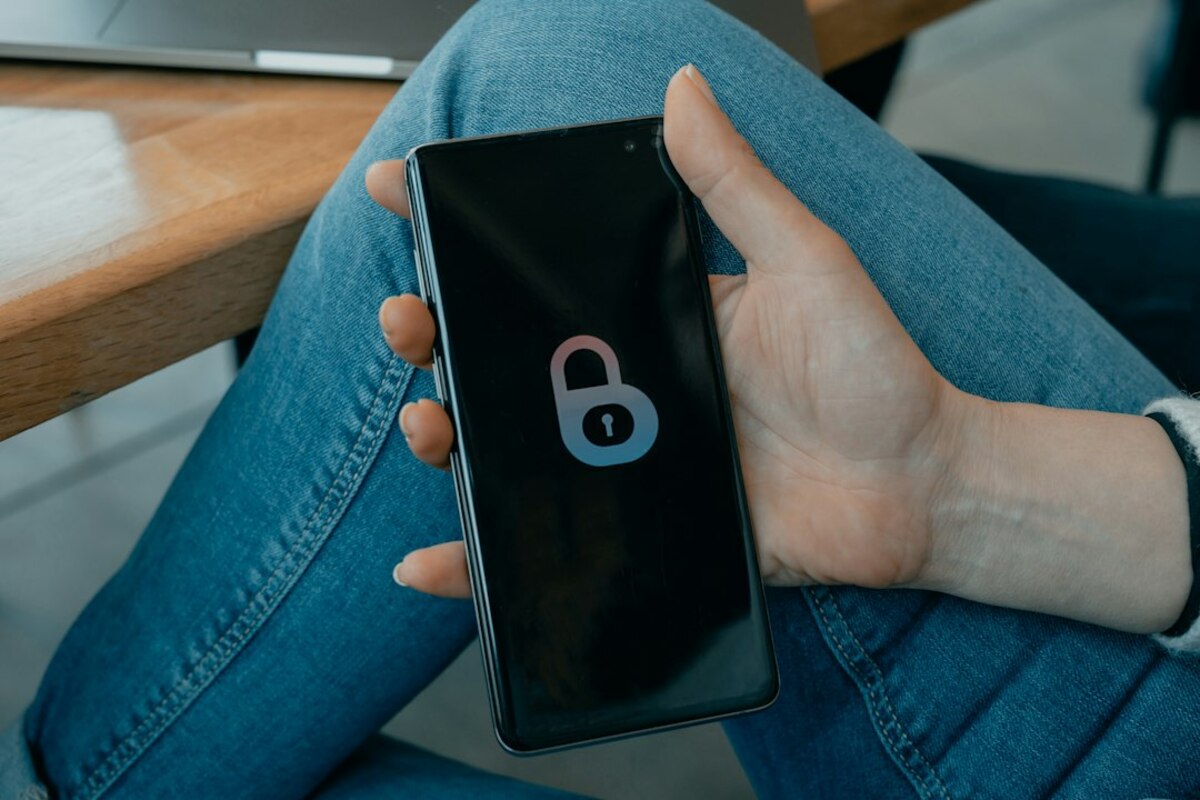
- Authenticator apps generate time-based codes on your phone—no cell service needed.
- They reduce common risks of SMS codes, like SIM-swap attacks and message interception.
- Setup is usually a 3-minute “scan a QR code” process, and you can back up or move codes safely.
Why this tool suddenly matters (even if you’re “not a target”)
Picture this: you wake up to an email saying your password was changed. Then another email: your bank login had “a new device sign-in.” Then a shopping site thanks you for an order you definitely didn’t place. The uncomfortable truth is that password leaks are common, and attackers don’t pick victims like a movie villain—they use automation. If your email and password show up in a data breach, bots will try that same combo on dozens of popular sites within minutes.
That’s where two-factor authentication (2FA) comes in. Think of it as the “second lock” on your account. Even if someone has your password, they still need a second proof that it’s really you. Many sites offer a code via SMS text message, but there’s a better everyday option that’s easy to use: an authenticator app.
An authenticator app (like Google Authenticator, Microsoft Authenticator, Authy, 1Password, Bitwarden, or others) generates a short code on your phone that changes every 30 seconds. You type that code after your password. It’s not magic—it’s math. But it’s a practical upgrade because it makes your login dramatically harder to steal through common real-world scams.
One quick analogy: if your password is the key to your front door, 2FA is the deadbolt. A text message code is like having the deadbolt key delivered by a courier—usually fine, but sometimes intercepted. An authenticator app is like having the deadbolt key already in your pocket, changing shape every half minute.

How authenticator apps work (without the technical headache)
When you enable authenticator-based 2FA on a website, you’ll usually see a square QR code. You open your authenticator app, choose “Add account,” and scan the QR code. That one scan quietly does something important: it shares a secret “seed” between the website and your phone.
From then on, both the website and your phone can generate the same 6-digit code at the same time—without talking to each other—because they both know the seed and they both know the current time. This is why authenticator apps usually work even with no signal (on a plane, in a basement, or during an outage). Your phone isn’t receiving the code; it’s calculating it.
When you log in, the website asks for the current code. If your code matches what the website expects in that 30-second window, you’re in. If a thief has your password but not your phone (or not your authenticator setup), they hit a wall.
Here’s a simple “what happens when” view:
| Step | What you do | What the tool is doing behind the scenes |
|---|---|---|
| 1. Turn on 2FA | Choose “Authenticator app” in account settings | The site prepares a secret seed for your account |
| 2. Scan QR code | Scan with the authenticator app | Your phone stores the seed securely (varies by app) |
| 3. Login later | Enter password + 6-digit code | Your phone generates a time-based code from the seed |
| 4. Code refreshes | Use the new code if the old one expires | The code changes every ~30 seconds automatically |
Common question: “If the code is only 6 digits, isn’t that easy to guess?” In theory, 6 digits means a million combinations. In practice, websites limit attempts and lock you out after a few wrong codes. And because the code changes quickly, brute-forcing it is unrealistic.
Getting started in real life: choosing an app, setting it up, and avoiding the classic mistakes
The easiest way to start is to pick one authenticator app and use it consistently. Most people are fine with any reputable option, but different apps handle backup and device switching differently—which matters more than the code itself.
What to look for when picking an authenticator app (in plain language):
- Backup or sync: If you lose your phone, can you recover your codes? Some apps offer cloud sync; others keep everything only on-device.
- Easy device transfer: If you buy a new phone, is moving codes straightforward?
- Extra protection: Does the app support Face ID / fingerprint or a separate passcode?
- Fits your habits: If you already use a password manager, it may include an authenticator feature—fewer apps to juggle.
A realistic setup scenario (what this looks like in the wild): you’re enabling 2FA on your email account. The site shows a QR code and also offers a “manual setup key” (a long string of letters/numbers). You scan the QR code, then the site asks you to enter the 6-digit code currently shown in your app to confirm everything works.
After that, the site will often show recovery codes (sometimes called backup codes). These are one-time-use emergency keys you can use if you lose access to your authenticator app. This is the part many people rush past—and it’s where future-you either thanks you or curses you.
Handle recovery codes like you’d handle a spare house key. You want them available when you need them, but not taped to your front door.
- Save them in a reputable password manager, or
- Print them and store them somewhere safe at home, or
- Store them in an encrypted note/document (not a plain text file named “recovery codes” on your desktop).
Three classic mistakes (and how to avoid them):
- “I’ll save recovery codes later.” Later never comes. Save them immediately before you click away.
- Keeping 2FA only on one device with no plan. If your phone breaks or gets replaced, you can get locked out. Make sure you know how your app handles backup/transfer.
- Falling for “2FA fatigue” or code-phishing. Some scams trick you into reading off your 2FA code or entering it on a fake login page. Treat codes like cash: if someone asks for it unexpectedly, pause.
That last point is worth making concrete. Imagine you get a message: “Your account is locked. Reply with the 6-digit code you just received.” Or a phone call: “I’m from support—tell me the code to verify you.” A real support team generally won’t ask for your live 2FA code. If you type your password and code into a fake site, the attacker can use them immediately on the real one. When in doubt, don’t click the link—open your browser and type the site address yourself.
SMS codes vs. authenticator apps (why people recommend the app route): SMS is convenient, but it relies on your phone number and the mobile network. Criminals sometimes pull off SIM-swap attacks, where they convince a carrier to move your number to their SIM card. If they succeed, they receive your text messages—including login codes. Authenticator apps aren’t perfect, but they avoid that specific weakness because they don’t depend on text delivery.
If you want a simple “which should I choose?” guide:
| Option | Good for | Watch out for |
|---|---|---|
| SMS text codes | Quick setup, works on any phone | SIM-swap risk, text interception, no-signal issues |
| Authenticator app codes | Everyday strong security, offline codes | Need a backup/transfer plan for new/lost phones |
| Security keys (USB/NFC) | Very strong protection for high-value accounts | Extra hardware to buy/carry; setup varies |
Tip for making this painless: start with your most important accounts first—email, banking, Apple/Google/Microsoft account, password manager, and anything related to work. Email is often the “master key” because password resets go there.
Also: you don’t have to convert your whole digital life in one evening. A relaxed, realistic approach is to do one account per day for a week. Each one takes a few minutes, and the security payoff stacks up quickly.
Yes, usually. The codes are generated on your device using time-based math. You only need internet to log into the website itself—not to produce the code.
You’ll use recovery codes, an alternate 2FA method, or your authenticator app’s backup/sync features (if enabled). The key is to prepare before the loss by saving recovery codes and knowing your app’s transfer method.
Yes. Most people store dozens of logins in the same app—each account gets its own entry and rotating code.
If you’ve ever felt that online security advice is either too scary or too technical, authenticator apps are a rare sweet spot: a small habit change that fits normal life. It’s like upgrading from a flimsy luggage lock to something that actually slows down the casual thief—without turning your day into an IT project.